All tutorials
How to order
Order from a home cook from start to finish: choose dishes and options, pick a pickup time, pay by card, and get your confirmation with the pickup address.
For customers · 3:22 · with narration
- Ordering
- Checkout
- Pickup
- Card payment
Step by step
Everything said in the video, in order.
Open the order pageat 0:00
- This is how to order from a home cook on Dish.ly. We will place a complete order, from the menu to the confirmation.
- Every cook has an order page. The card at the top tells you the day the food is cooked. If there is more than one day, choose yours here.
- It also shows when orders close for that day. The cook shops and cooks to order, so order before that time.
- The last line says how you get your food. Here you can pick up in Maple, or have it delivered.
Choose your dishesat 0:27
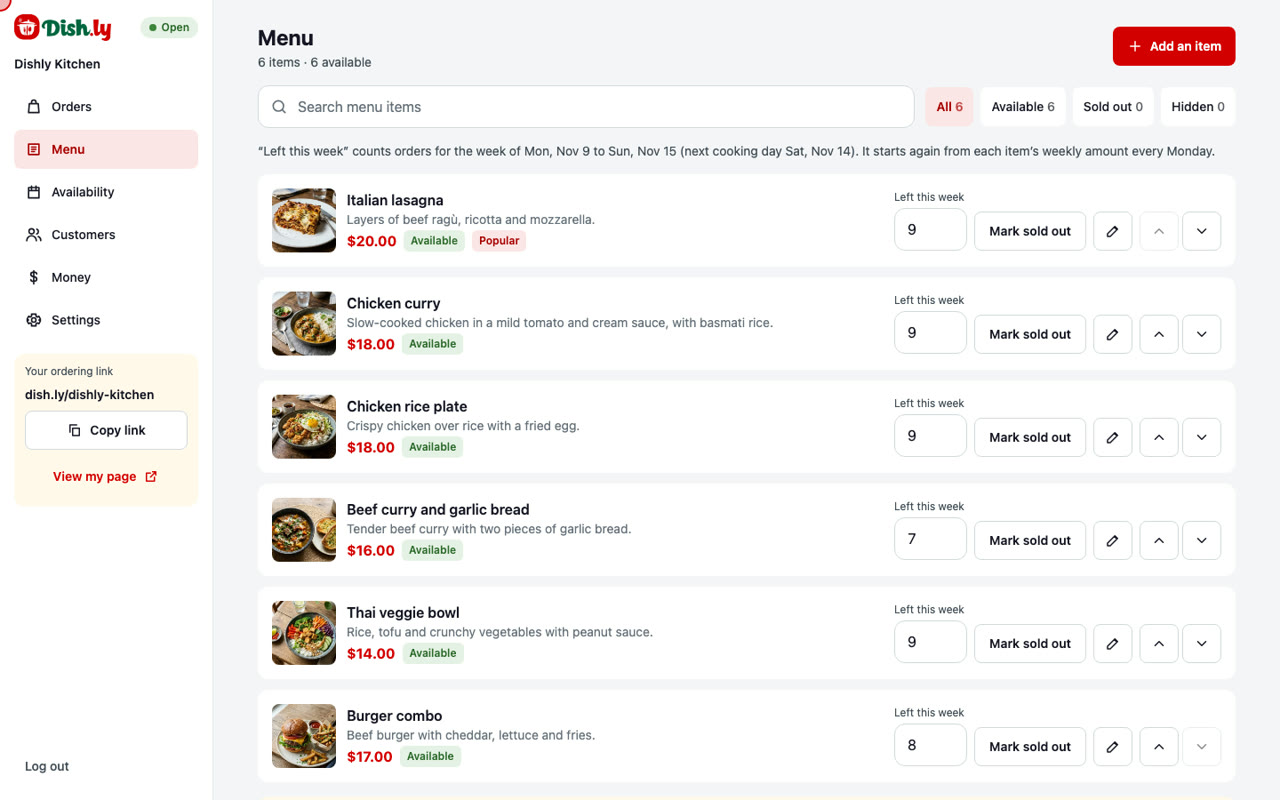
- Below is the menu. Every dish has a photo, a short description and a price.
- A price that starts with From means the dish comes in more than one size. Tap the lasagna to see its options.
- The dish page has the full description, how many it serves, and the allergens.
- First choose a portion. We will take the Family tray, which serves four.
- Add-ons are optional. Let's add extra garlic bread.
- You can also leave a note for the cook. For example: no onions, please.
- The button shows the price with your choices. Tap Add to order.
Review your orderat 1:02
- You are back on the menu, and the lasagna is in your order on the right.
- Dishes without options are quicker. Tap the plus button to add one. Let's add a chicken curry.
- Your order lists each dish with your choices, your note and the price. Use plus and minus to change how many you want.
- Under the subtotal you see the $2.00 service fee that is added to every order, and the time until which you can cancel for free.
- When you are ready, go to checkout.
Checkout: pickup and timeat 1:31
- Checkout has three short steps. Step one is how you get your food: pick it up, have the cook deliver it, or send a courier.
- We will pick up, which is free. For now you only see the area. The exact address is shown after you pay.
- Then choose a pickup time that suits you.
Your detailsat 1:49
- Step two is your details. Enter your full name.
- Then your email. Your confirmation and the pickup address are sent there.
- And your mobile number. It is needed on every order, so the cook can reach you about your food. It is never used for ads.
Payat 2:04
- Step three is payment. You can pay by card, or by Interac e-Transfer. Cash is not accepted.
- We will pay by card. Enter the card number.
- Then the expiry date and the security code.
- On the right, check your order and the total: the food, free pickup, and the $2.00 service fee.
- Now tap Pay. The payment is handled securely and takes a few seconds.
Your confirmationat 2:31
- That's it. Your order is confirmed, and you have an order number.
- This card shows your pickup day and time. And now that you have paid, you see the exact address of the kitchen.
- You can open directions, or add the pickup to your calendar.
- What happens next follows your order: confirmed, cooking, ready for pickup, and picked up. You get an email when it is ready.
- Below is your receipt, with everything you ordered and what you paid.
- The same details are in your confirmation email: the pickup time and address, your dishes, the total, and a button that opens this page again.
Cancellingat 3:08
- Changed your mind? Until orders close for your day, you can cancel here for a full refund. After that, message the cook instead.
- And that is ordering on Dish.ly: choose your dishes, choose a time, pay, and pick up your food.