All tutorials
Cooking days, cut-offs and pickup times
Choose the days you cook, when orders close for each, your pickup and delivery times and their limits, time off, and pausing orders.
For sellers · 2:15 · with narration
- Cooking days
- Cut-off
- Pickup times
- Time off
- Pause orders
Step by step
Everything said in the video, in order.
The Availability screenat 0:00
- This is Availability. It decides when customers can order from you, and when they get their food.
- At the top is your store status. Open for orders means customers can order right now.
- This week shows your next cooking day, when its orders close, and how many orders you have so far.
Cooking days and cut-offsat 0:18
- Cooking days are the days your food is ready. Tap a day to add it. Let's add Friday.
- Each cooking day has a cut-off: the moment its orders close. Choose the day and the time. Here, orders for Friday close on Thursday at six in the evening.
- After the cut-off, customers can no longer order or cancel for that day. So you know exactly what to shop for and cook.
Pickup and delivery timesat 0:41
- Pickup and delivery times are offered on every cooking day. Customers choose one at checkout.
- For each time, tick what it is used for: pickup, your own delivery, or courier.
- Max orders is how many orders one time can take. When it is full, customers see that, and choose another time.
- Tap Add a time for another one. Then set its hours, and how many orders it can take.
Limitsat 1:07
- Under Limits, Max orders per day closes ordering for a day once that many orders are in.
- Minimum order is the least a customer must spend on food. Enter zero for no minimum.
Time offat 1:20
- Going away? Add time off, with your first and last day away. Customers cannot order for those dates.
- Tap Save changes. They show on your order page as soon as you save.
Pausing and resuming ordersat 1:32
- Need a break right now? Pause orders stops new orders, without taking your page down.
- Orders you already have are not affected. Confirm, and you are paused.
- This is what customers see while you are paused. Your page and your menu are still there, but they cannot order.
- They can leave their email, and Dish.ly tells them when your orders open again.
- When you are ready, tap Resume orders, and confirm.
- You are open again, and customers can order for your next cooking day.
- And that is Availability: your cooking days and cut-offs, your pickup and delivery times, your limits, time off, and a pause button for when you need it.
More tutorials
Try it on your own page
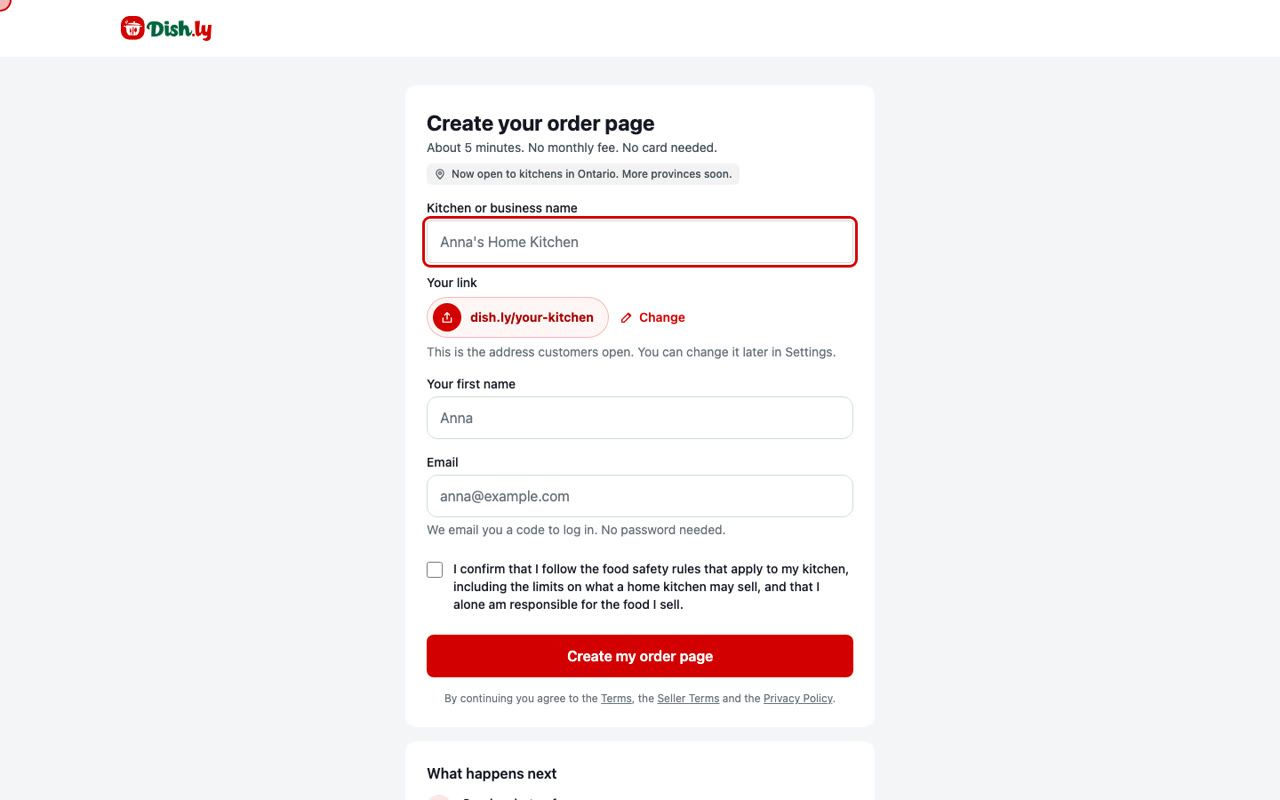
Create your order page in a few minutes. No monthly fee.