All tutorials
Creating your order page
Sign up, build your menu from a photo, set pickup, delivery and payouts, and go live with your own link.
For sellers · 2:59 · with narration
- Getting started
- Sign up
- Menu from a photo
- Go live
Step by step
Everything said in the video, in order.
Sign upat 0:00
- Creating your order page on Dish.ly takes about five minutes. There is no monthly fee, and you do not need a card.
- Start with the name of your kitchen or business.
- Dish.ly turns the name into your link, and checks that it is free. This is the address your customers will open. Tap Change if you want a different one.
- Add your first name, and your email address.
- Then confirm that you follow the food safety rules for your kitchen, and that you are responsible for the food you sell.
The emailed codeat 0:29
- Tap Create my order page. There is no password: Dish.ly emails you a code instead.
- Open the email, and type the 8-digit code here.
Your menu, from a photoat 0:39
- You are in. Setup has three steps, and the first is your menu. You do not have to type it in.
- Add a photo or a PDF of the menu you already have. A screenshot works too, or you can simply type your dishes.
- The menu helper reads it, and finds each dish with its description and price. That takes about half a minute, so we will skip ahead.
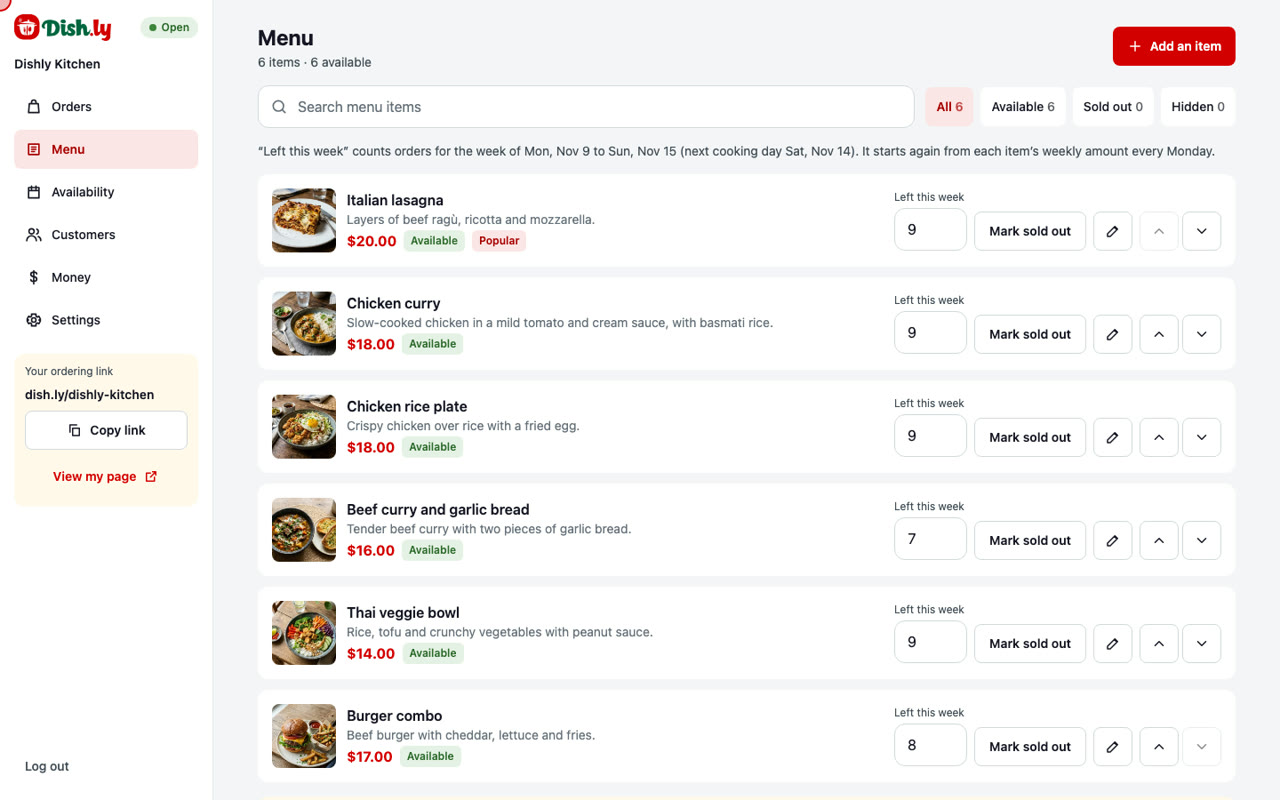
- Here is the result. Every dish from the photo is on the right, ready to check.
- Read it over. If something is not right, fix it in place. Let's change the price of the samosas.
- You can also just tell the helper what to change, in your own words. When the menu looks right, continue.
Pickup and deliveryat 1:20
- Step two is pickup and delivery. Enter your mobile number, so Dish.ly can reach you about an order.
- Then your kitchen address. Start typing, and pick it from the list.
- Customers only see your area before they order. The exact address is shown after they pay. You can also hide it completely, and only deliver.
- Choose how customers get their food: pickup, your own delivery with your fee and distance, or a courier.
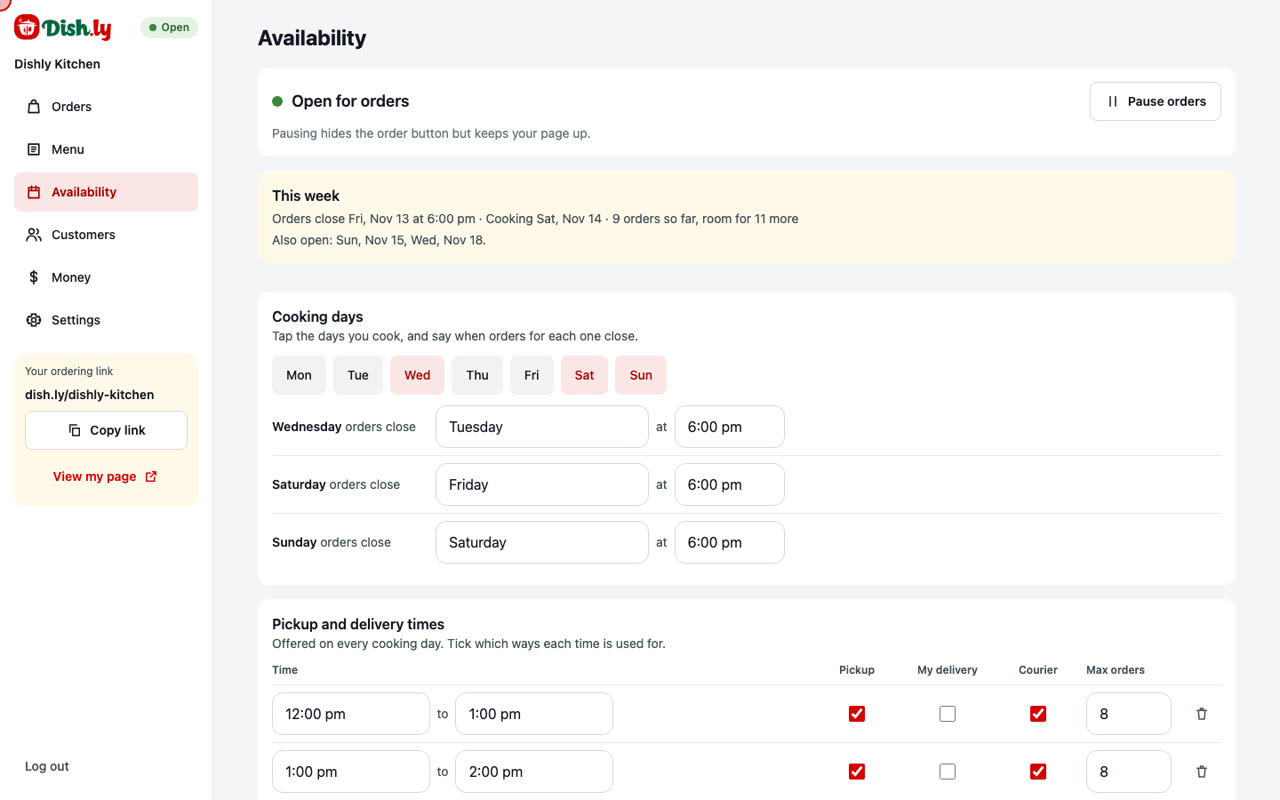
- Then your cooking days, when orders close for each one, and your pickup times. You can change all of this later.
Getting paidat 1:54
- Step three is getting paid. Customers pay by card or by Interac e-Transfer. Card money is sent to you every Monday, to the email you give here.
- There is no monthly fee. The credit card processing fee is 2.9% + $0.30. Open the example to see exactly what you keep on an order.
Go live and share your linkat 2:13
- That is everything. Tap Go live.
- Your order page is live. This is your link. Copy it into your Instagram bio, your stories and your group chats.
- There is a QR code to print for your table or your packaging, and a ready-made caption for your posts.
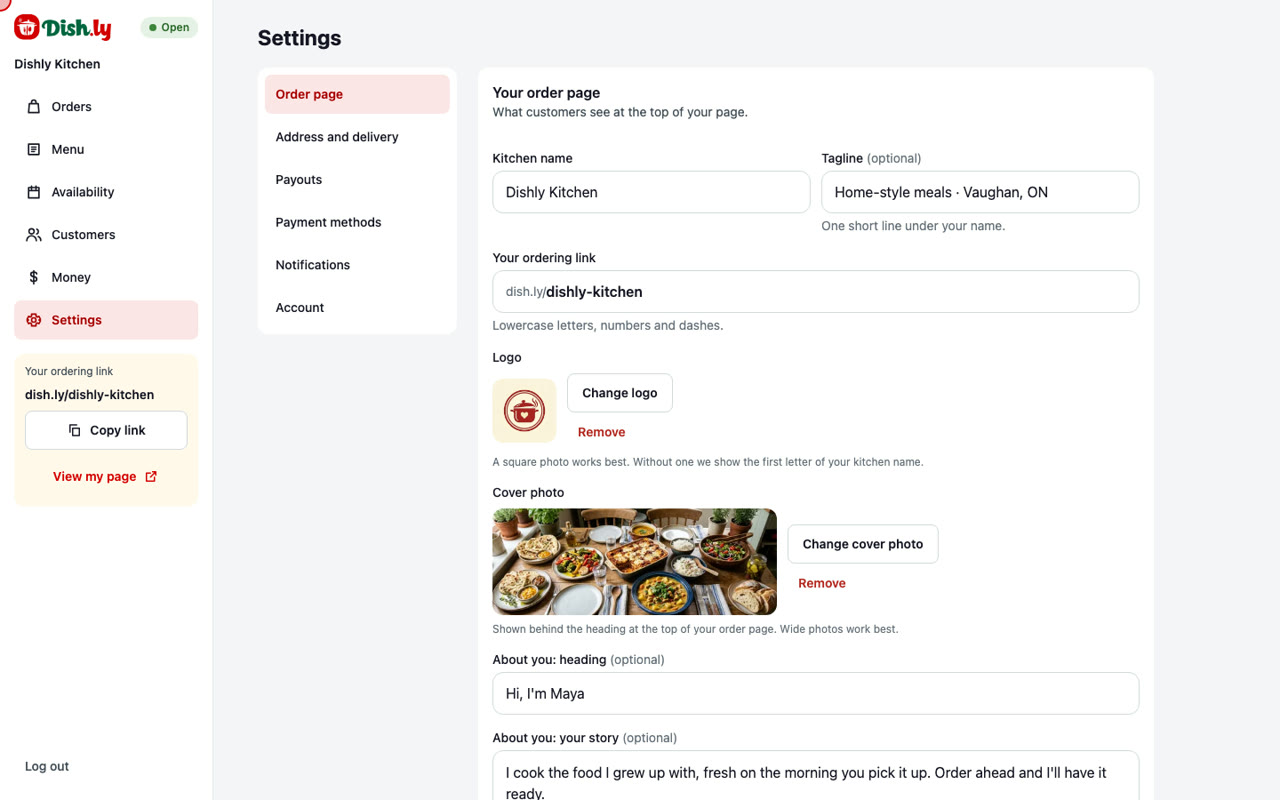
- Want a shorter link? Tap Change my link, type the new one, and Dish.ly checks that it is free.
- Save it, and the QR code and the caption change with it.
- And this is what your customers see: your kitchen, your menu from the photo, and your first cooking day, ready for orders.
- That is creating your order page: sign up, send your menu, set pickup and payouts, go live, and share your link.
More tutorials
Try it on your own page
Create your order page in a few minutes. No monthly fee.